Are you still showing your full blog posts right on your homepage? If so, you might be unintentionally overwhelming your readers (and slowing down your site!).
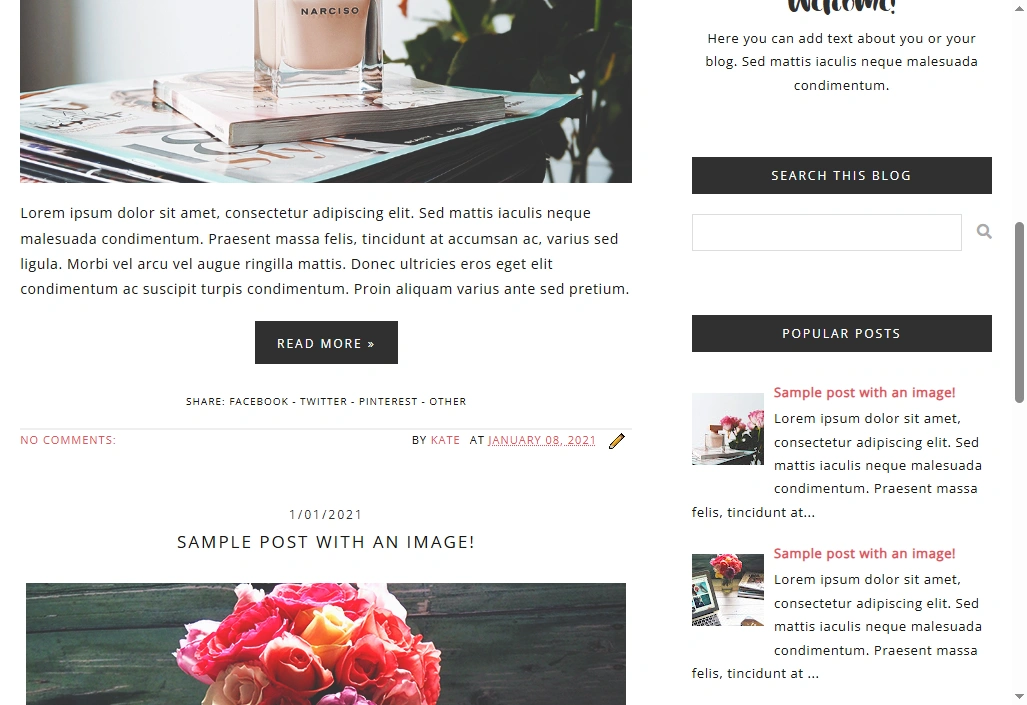
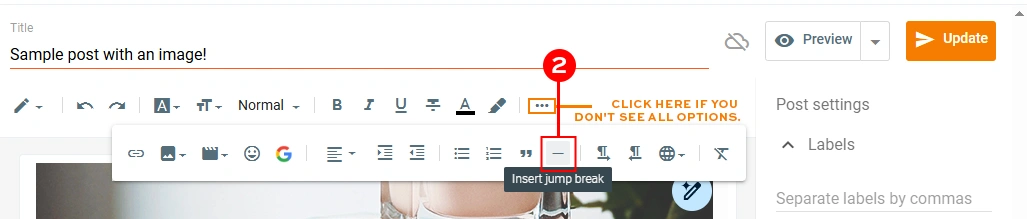
Switching to post excerpts – also known as summaries or “jump breaks” – is a total game-changer. Instead of a giant wall of text, your homepage will show a nice teaser followed by a “Read More” button.
Here is why you should make the switch, plus a quick guide on how to do it.
5 Reasons We Love Post Excerpts
- It makes your blog easier to skim Let’s be honest – people scroll fast. Excerpts let your readers quickly scan your titles and intros to find the posts they actually want to read, without having to scroll for ages to get past a topic they aren’t interested in.
- Your site will load much faster Full posts usually have lots of big photos and text. By only loading a snippet, your homepage becomes much lighter and faster. Nobody likes waiting for a slow website to load!
- You’ll get more page views When a reader clicks “Read More,” it counts as a second page view. This lowers your “bounce rate” (which makes Google happy) and keeps readers on your site longer.
- It looks cleaner and more professional Excerpts let you feature more content in less space. It gives your blog a polished, organized look – like an online magazine – rather than a cluttered diary.
- It encourages more comments When readers click through to read the full post, they end up right above the comments section when they finish reading. Since they are already there, they are much more likely to say hello!
Related: 6 Easy Ways to Get More Comments on Your Blog
How to Add “Jump Breaks” in Blogger
Blogger has a super easy tool for this called the Jump Break. It basically tells the blog: “Stop showing the text here, and hide the rest behind a link.”
Here is exactly how to do it:
Step 1
Write your post as usual. When you are done, decide where you want the “teaser” to stop. Click your mouse right at that spot.
Step 2
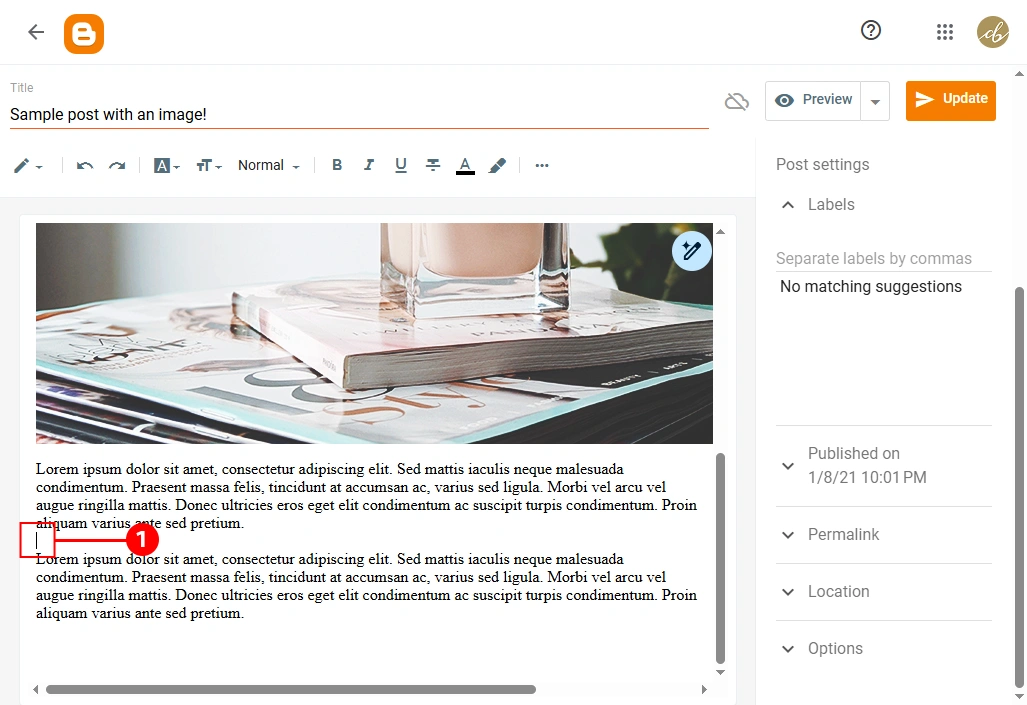
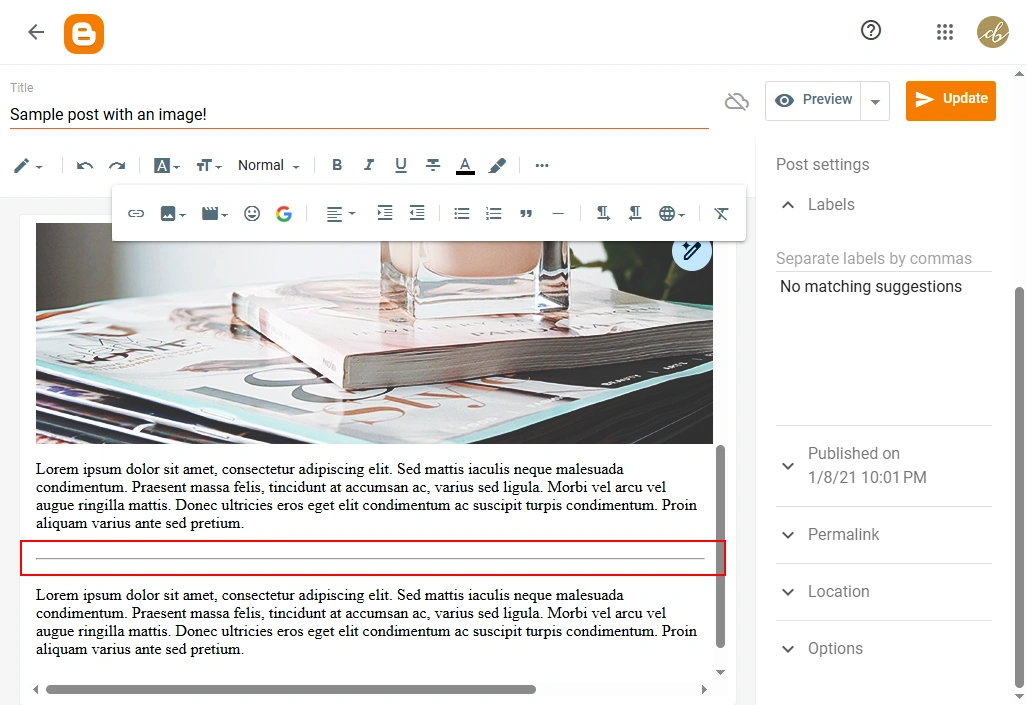
Look for the Jump Break icon in your toolbar (it usually looks like a broken page or a horizontal line). Click it once.
Step 3
You should see a grey line appear across your text where you clicked. This is exactly where the “Read More” button will show up on your homepage.
Step 4
Hit publish, and you are all set! Go check your homepage to see your new, clean layout.
Want to skip the tech stuff?
If you want your “Read More” buttons to look a specific way, or if you are ready for a completely fresh look, we can help!
Update Your Current Site
If you love your current theme but just need help adding this feature, visit our Blog Accessories Shop and grab the “Post Excerpts on Homepage” option. We’d be happy to set it up for you.
Get a New Look
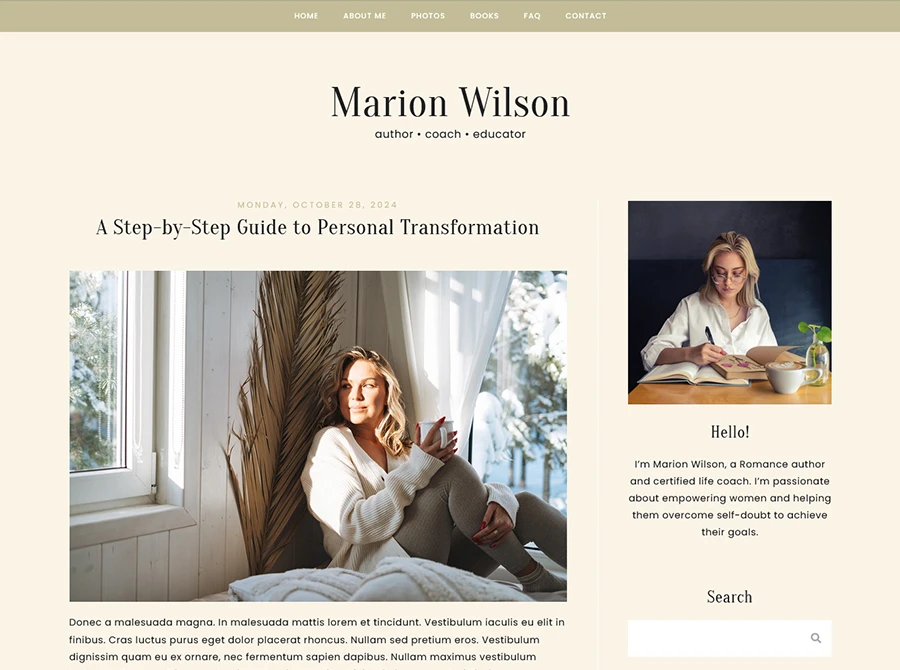
Check out our Premade Blogger Designs. All of our templates come with post excerpts built-in and beautifully styled, so you don’t have to lift a finger! Chest our newest designs below:




Thank you for this article. I am just starting out and need a lot of direction. It explains things simply and has easy to follow directions that worked perfectly!
I didn’t know about it before